5 Upgrading OPENVAS SCAN to the Latest Major Version
GOS 24.10 provides seamless upgrades to the new major version GOS 25.0.
All system settings and user data are retained and automatically migrated to the new version unless a change in default behavior affects specific settings or data. For a list of changes to the default behavior, see Chapter 5.5.
5.1 Upgrading the Greenbone Operating System
Note
Before upgrading to GOS 25.0, the latest version of GOS 24.10 must be installed on the appliance.
The upgrade to GOS 25.0 can be carried out as follows:
Select Maintenance and press Enter.
Select Upgrade and press Enter.
→ A message indicates that a new GOS release is available.
Press Enter to close the message.
Select Switch Release and press Enter.
→ A warning indicates that the appliance will be upgraded to a new major version (see Fig. 5.1).
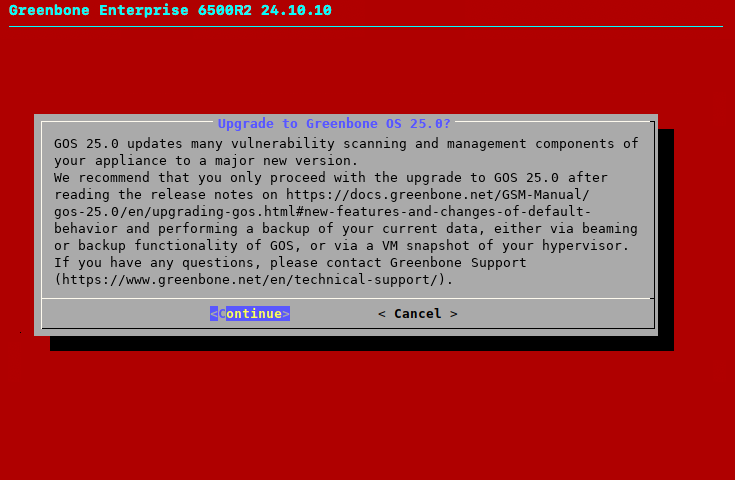
Fig. 5.1 Warning when upgrading to GOS 25.0
Select Continue and press Enter.
→ A warning indicates that the appliance cannot be used during the upgrade to GOS 25.0 (see Fig. 5.2).
Note
System operations cannot be run during the upgrade. All running system operations must be completed before starting the upgrade.
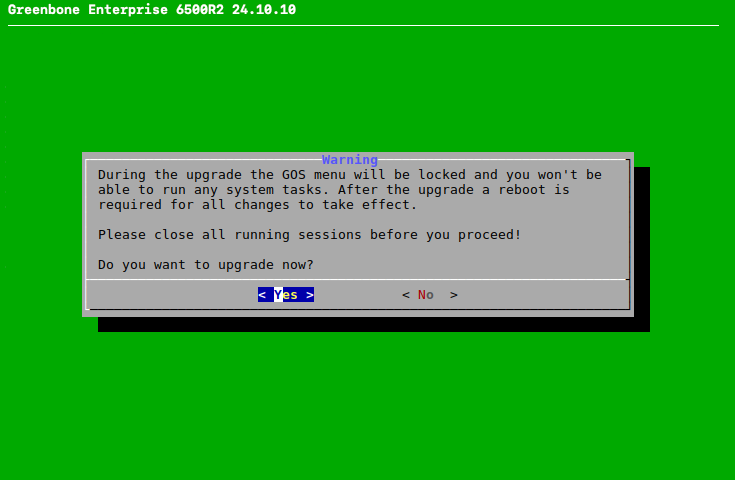
Fig. 5.2 Warning that the system cannot be used during the upgrade
Select Yes and press Enter.
→ A message indicates that the upgrade has started.
Note
When the upgrade is complete, a message indicates that a reboot is required to apply all changes (see Fig. 5.3).
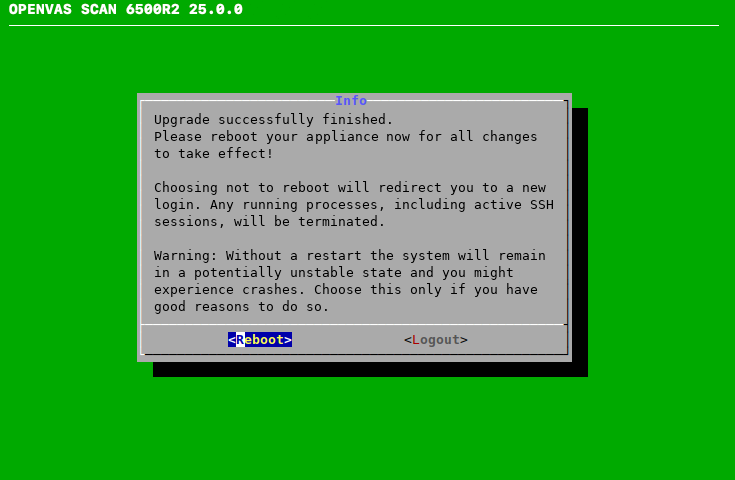
Fig. 5.3 Message after a successful upgrade
Select Reboot and press Enter.
→ After the reboot is complete, the system checks for any incomplete setup steps. If any steps are incomplete, a message asks whether they should be completed now.
Note
A feed update must be performed after upgrading to GOS 25.0 to use the new features (see Chapter 5.5).
The first feed update after upgrading to GOS 25.0 may take longer and require more system resources (CPU, RAM) than usual due to the changes and new features that are being prepared. To ensure that sufficient system resources are available, it is recommended to wait for the feed update to complete before resuming normal use of the appliance.
5.2 Upgrading GOS on the Flash Partition
The internal flash partition of the appliance contains a backup copy of GOS that is used for a factory reset.
Upgrading the GOS version stored on the flash partition is recommended (see Chapter 6.3.8).
5.4 Reloading the Web Interface
After an upgrade from one major version to another, the cache of the browser used for the web interface must be cleared. The browser cache can be cleared in the browser settings.
Alternatively, the page cache of every page of the web interface can be cleared by pressing Ctrl + F5.
Note
Clearing the page cache must be done for each page.
Clearing the browser cache applies to all pages.
5.5 New Features and Changes to Default Behavior
The following list describes the major additions and changes of default behavior between GOS 24.10 and GOS 25.0.
Depending on the features currentliy in use, these changes may affect the existing setup. For a full list of changes, see the Roadmap & Lifecycle page.
5.5.1 Product Portfolio and New License Model
The new appliance model OPENVAS SCAN VIRTUAL was added. With its use, a new licensing model will be supported. Licensing will be converted to an asset-based model in the future. This means that the scope of the license will no longer be based on fixed device limits, as was previously the case, but on the number of assets to be scanned.
5.5.2 Container Image Scanning
Container image scanning was added for selected appliance models. For this purpose, container images are loaded from container registries defined by the user. The packages used for the container images are identified and checked for vulnerabilities. The results are provided in a report.
5.5.3 Base System
With GOS 25.0, the underlying Linux base system of GOS was updated to Debian 13 (Trixie). This includes the addition of post-quantum cryptographic (PQC) algorithms.